

Introduction
In the ever-evolving world of technology, efficiency is crucial for those who work with multiple devices and setups. One tool that stands out for simplifying control over multiple computers is the KVM switch. Whether you’re a tech professional, a gamer, or someone who needs to manage multiple machines, a KVM switch can save time, space, and hassle. In this article, we’ll explore everything you need to know about KVM switches: what they are, how they work, the different types available, and the benefits they offer.
| Feature | Details |
|---|---|
| Definition | Keyboard, Video, Mouse switch; allows control of multiple computers from a single set of peripherals |
| Types | Desktop, rack-mounted, USB, HDMI, VGA, DisplayPort |
| Number of Ports | Typically ranges from 2 to 16 ports |
| Switching Method | Manual (button), hotkey, or remote control |
| Resolution Support | Up to 4K (3840 x 2160) or higher, depending on model |
| Audio Support | Some models include audio switching |
| Compatibility | Works with various operating systems (Windows, macOS, Linux) |
| Power Supply | USB-powered or external power adapter |
| Additional Features | USB hubs, support for peripherals like printers, rack mountable options |
| Form Factor | Compact or full-size chassis, portable options available |
| Price Range | Generally $20 to $500+, depending on features and number of ports |
What is a KVM Switch?
A KVM (Keyboard, Video, Mouse) switch is a hardware device that allows you to control multiple computers using a single keyboard, monitor, and mouse. The term “KVM” refers to the ability to manage keyboard inputs, video display, and mouse controls from one central setup, eliminating the need for multiple peripherals.
In simpler terms, imagine you’re working with two or more computers. Without a KVM switch, you’d need separate keyboards, monitors, and mice for each machine. With a KVM switch, you can seamlessly switch between these computers using just one set of peripherals.
How Does a KVM Switch Work?
A KVM switch works by acting as an intermediary between your peripherals and multiple computers. It allows you to select which computer to control by switching between devices through a button on the switch itself, keyboard shortcuts (hotkeys), or sometimes via software. Here’s a simple breakdown:
Connect all your computers to the KVM switch using appropriate cables (usually HDMI, DVI, or DisplayPort for video, and USB for keyboard/mouse).
Connect your peripherals (keyboard, monitor, and mouse) to the switch.
Toggle between the computers by pressing a switch, using a hotkey, or activating the control through software.
Once switched, the KVM will route the inputs and outputs of the selected computer to your peripherals, making it easy to work on multiple systems without the clutter of multiple setups.
Why a KVM Switch Is Essential for Multi-Device Setups
A KVM (Keyboard, Video, Mouse) switch simplifies the management of multiple computers by allowing a single set of peripherals to control more than one system. This technology is especially valuable for users who work with several machines simultaneously, such as IT professionals, content creators, and home office users, because it eliminates the need to constantly swap keyboards and mice or connect and disconnect displays. By streamlining control through a central interface, a KVM switch enhances desk organization and improves workflow efficiency. Whether used in personal setups or more complex workstations, KVM switches help maintain a cleaner workspace and reduce the time spent toggling between devices.
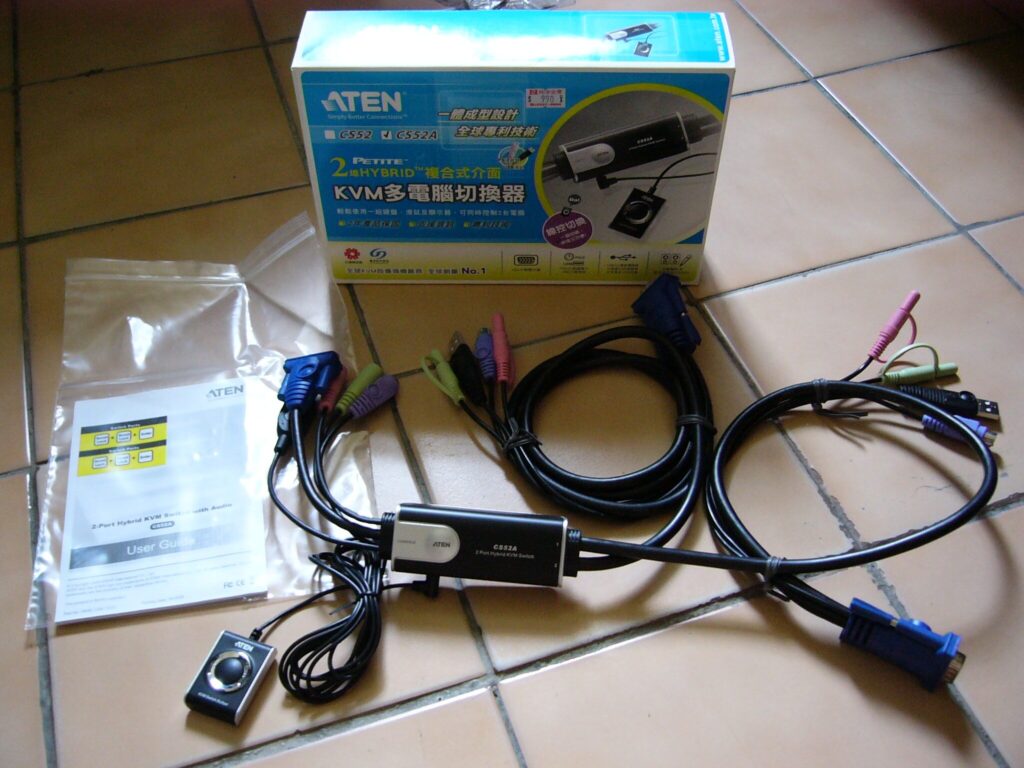
Types of KVM Switches
KVM switches come in different forms, depending on your needs, and can vary in terms of functionality and complexity. Here are the most common types:
1. Basic KVM Switches
These are simple, traditional KVM switches designed for small setups, allowing control of 2 to 4 computers. They are typically controlled via physical buttons and are ideal for home use or small office setups.
2. USB KVM Switches
Most modern KVM switches use USB connections for the keyboard and mouse. This ensures compatibility with the vast majority of peripherals and allows for hot-swappable connections.
3. HDMI or DisplayPort KVM Switches
These switches are designed for users who need high-quality video output, such as those working with graphic design, gaming, or video editing. They support high-definition resolutions (4K, 1080p, etc.) and provide smooth video transitions between computers.
4. IP KVM Switches
IP KVM switches allow remote access to the connected computers over a network or the internet. These are typically used in data centers or for IT professionals who need to manage systems remotely.
5. Dual Monitor KVM Switches
Some users need to switch between computers that have dual-monitor setups. These specialized KVM switches support dual displays, ensuring that you can work seamlessly across multiple screens.
6. Matrix KVM Switches
Matrix KVM switches allow multiple users to control multiple computers at the same time. These are often used in corporate environments or server rooms where multiple admins need access to different machines simultaneously.

Benefits of Using a KVM Switch
1. Space-Saving
One of the primary benefits of a KVM switch is the ability to save physical space. Instead of cluttering your desk with multiple keyboards, monitors, and mice, you only need one set of peripherals for several computers. This is especially useful in small offices or server rooms where space is at a premium.
2. Cost Efficiency
By reducing the need to purchase multiple sets of peripherals, a KVM switch helps cut down on costs. You can invest in high-quality peripherals and use them across all your systems, rather than buying duplicates for each computer.
3. Time-Saving
With a KVM switch, switching between systems takes just a second. This is a huge time-saver compared to physically moving between computers or reconnecting devices. If you manage multiple systems, whether for work or personal use, the KVM switch streamlines your workflow.
4. Convenience and Organization
By consolidating your control of multiple computers into one setup, your workspace becomes much more organized and less chaotic. Switching between systems becomes simple and hassle-free, and there’s no need to worry about tangled cables or mismatched setups.
5. Remote Access
For IT professionals or businesses with remote operations, IP KVM switches provide a way to manage systems remotely. You can log in and control a system from anywhere in the world, giving you ultimate flexibility in managing servers or multiple computers.
6. Multi-Platform Compatibility
Many KVM switches are compatible with different operating systems, including Windows, macOS, and Linux. This makes them versatile tools for environments that use a variety of systems, such as testing labs or data centers.
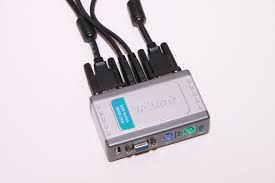
Use Cases for KVM Switches
KVM switches can be beneficial for a variety of users and situations. Here are some common use cases:
1. Data Centers
In large data centers, IT professionals often need to manage multiple servers. A KVM switch provides a simple way to access and control various servers from a single station, improving efficiency and minimizing the hardware footprint.
2. Software Development and Testing
Developers and testers often work with multiple operating systems or test environments. A KVM switch allows them to switch between systems quickly and efficiently, making it easier to test software across different platforms.
3. Home Office Setup
For professionals working from home, a KVM switch can help manage personal and work computers from one desk. Instead of cluttering the workspace with extra keyboards and monitors, a KVM switch keeps things organized while boosting productivity.
4. Gaming
For gamers who use both PC and console setups, a KVM switch can help manage both systems from a single monitor, keyboard, and mouse. This eliminates the need for constant cable switching and setup changes, allowing for smoother transitions between gaming and other tasks.
5. Content Creators
Video editors, graphic designers, or other content creators who work with multiple devices benefit from a KVM switch to manage their high-performance workstations and peripheral systems, streamlining their creative process.

Things to Consider When Buying a KVM Switch
When shopping for a KVM switch, it’s important to consider the following factors:
- Number of Ports: Ensure the KVM switch has enough ports to accommodate all the computers you want to control.
- Display Compatibility: If you require high-resolution displays (e.g., 4K), make sure the KVM switch supports the necessary display technology, such as HDMI or DisplayPort.
- Peripheral Compatibility: Verify that the KVM switch is compatible with your specific keyboard and mouse, especially if they are wireless or gaming peripherals.
- Audio Support: Some KVM switches include audio switching, allowing you to control sound across multiple systems.
- Hotkey or Button Switching: Decide whether you prefer switching via physical buttons on the switch, hotkeys, or software.
- Power Requirements: Some KVM switches are powered via USB, while others require external power adapters. Consider your power setup before purchasing.
Common Mistakes to Avoid When Using a KVM Switch
To get the best performance from a KVM switch, it’s important to avoid common setup mistakes. Using incompatible cables, connecting unsupported peripherals, or choosing a switch that doesn’t support your monitor’s resolution can lead to display issues or input lag. Always verify compatibility with your computers, monitors, and USB devices before purchasing.
Additionally, keeping firmware updated on advanced KVM models and using high-quality cables can improve reliability, ensuring smooth switching between systems and uninterrupted productivity in both home and professional work environments.
Conclusion
A KVM switch is a highly valuable tool for anyone who manages multiple computers or workstations. From saving space and reducing clutter to improving workflow and efficiency, these devices have become essential in both home and professional environments. Whether you’re a tech enthusiast, a software developer, or an IT professional, the right KVM switch can help you streamline your setup and enhance your productivity.
Apart from that if you want to know about “The Ultimate Guide to 4K Laptops: Everything You Need to Know” then please visit our “Tech” Category.
FAQs
A KVM switch allows you to control multiple computers with one set of peripherals, while a docking station connects a single laptop or computer to multiple external devices. A docking station doesn’t offer the ability to switch between multiple systems.
Yes, many KVM switches are compatible with both macOS and Windows operating systems, allowing you to control a Mac and a PC with the same set of peripherals. Make sure the KVM switch supports both platforms before purchasing.
Some KVM switches are powered through USB connections, while others require an external power source. High-end or multi-display switches typically come with power adapters for stable performance.
Yes, KVM switches are generally secure, but if you need enhanced security, especially in sensitive environments (e.g., government or corporate settings), you may want to opt for secure KVM switches designed to prevent data leakage.
Yes, alternatives include software-based solutions like remote desktop software or virtual machines that allow you to control multiple systems from one device. However, these software solutions may not be as convenient for real-time control of multiple physical systems as a KVM switch.