

Introduction
In gaming, performance can make a big difference in your experience. An FPS counter is useful for showing how many frames your game runs per second. This information helps you understand the game’s performance and indicates if your system handles the graphics well. A higher fps means smoother gameplay, which is crucial for fast-paced action games. Knowing how to use an FPS counter can also help you identify issues like lag or stuttering, allowing you to adjust for a better gaming experience.
Why an FPS Counter Matters for Performance Monitoring
An FPS (Frames Per Second) counter serves as a valuable tool for gamers, developers, and performance enthusiasts who want to understand how smoothly an application or game is running in real time. By displaying the number of frames rendered each second, an FPS counter provides a direct insight into system responsiveness, helping users identify performance bottlenecks or areas where graphical settings might need adjustment. Whether integrated into software or added through external tools, an FPS counter enhances the user’s ability to monitor performance objectively, making it easier to balance visual quality with fluid gameplay and overall system efficiency.
Why is FPS Important?
The fps in gaming is crucial because it directly affects your gameplay experience. A higher fps typically leads to smoother motion, better control, and more responsive gameplay. For competitive gamers, every millisecond counts, and a higher fps can make a significant difference in performance. Conversely, low fps can lead to lag, stuttering, and a frustrating experience. Understanding your fps can help you identify performance issues and optimize settings for the best experience.
How do you enable the FPS Counter in Popular Games?
Most popular games offer a built-in fps counter that can be easily enabled. For example, in Steam games, you can activate the fps counter by going to the settings menu, selecting the “In-Game” tab, and choosing your desired position for the counter. In games like Fortnite, you can find the option under “Settings,” then “Game,” where you can enable the fps display. Similarly, console players can often find options in their game settings or through the console’s menu.
Third-Party FPS Counters
Third-party applications can be a great solution if a game doesn’t have a built-in fps counter or wants more detailed performance metrics. Popular tools like Fraps, MSI Afterburner, and GeForce Experience offer robust options for tracking fps and other performance metrics. These tools can display real-time fps in the corner of your screen while you play, providing valuable insights. Some applications even allow you to record gameplay, capture screenshots, and monitor GPU performance.
How to Interpret FPS Readings?
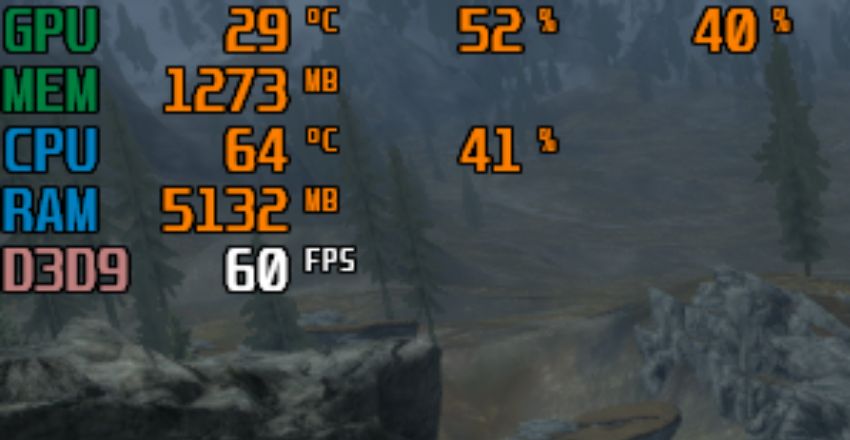
Understanding the numbers displayed by an fps counter is essential for optimizing your gaming experience. Generally, 30 fps is the minimum for playable gameplay, but 60 fps is ideal for most games. Aiming for 144 fps or higher is preferable for competitive gaming, as many gaming monitors support this refresh rate. Additionally, monitoring fluctuations, such as consistent fps, is often more important than achieving high numbers. Sudden drops can indicate performance issues that need addressing.
Optimizing Your FPS
If you notice that your fps is lower than expected, several steps can help optimize performance. First, lower your game’s graphics settings, as high settings can strain your hardware. Turning off features like anti-aliasing and reducing texture quality can significantly improve fps. Additionally, make sure your graphics drivers are up to date, as manufacturers frequently release updates that can enhance performance. Monitoring your system’s temperatures can also help, as overheating can cause performance drops.
Common Issues Affecting FPS
- Several factors can affect your fps while gaming. Hardware limitations, such as an outdated graphics card or insufficient RAM, are common culprits.
- Background applications running on your system can consume resources, leading to lower fps.
- Network issues may affect online gameplay; high latency or a slow connection can cause lag, even if your fps are high.
- Identifying and addressing these issues can significantly improve your gaming experience.
The Impact of Refresh Rate
While fps is essential, it’s also important to consider your monitor’s refresh rate. The refresh rate, measured in hertz (Hz), indicates how many times your monitor updates the image per second. A 60 Hz refresh rate monitor can only display up to 60 fps, meaning higher fps will not improve your experience. For gamers seeking the best performance, consider a monitor with a higher refresh rate, such as 120 Hz or 144 Hz, to take full advantage of high fps.
FPS Counter in Esports
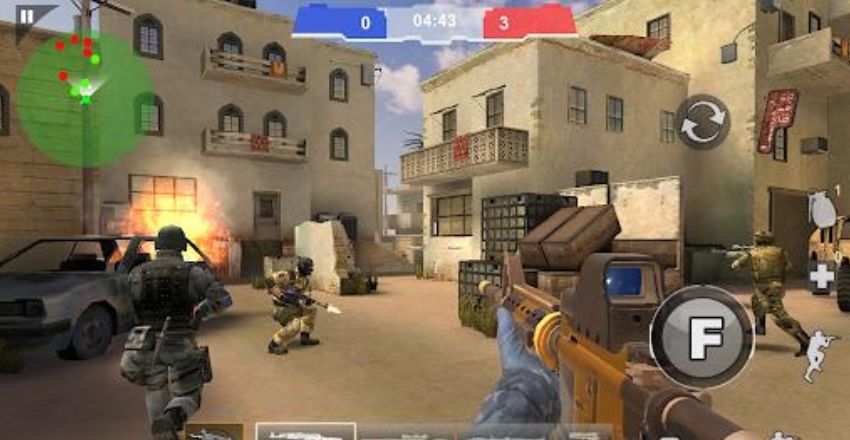
In the realm of esports, an FPS counter can be a game-changer. Competitive gamers often require extremely high and stable fps to maintain an edge over opponents. Many esports titles allow players to monitor their fps in real-time, which helps them make necessary adjustments. In tournaments, performance consistency is vital; an fps counter can help players ensure they are performing at their best. Understanding fps can be the difference between victory and defeat in high-stakes matches.
Advanced Features of FPS Counters
- Many advanced fps counters provide more than just a simple frame rate display.
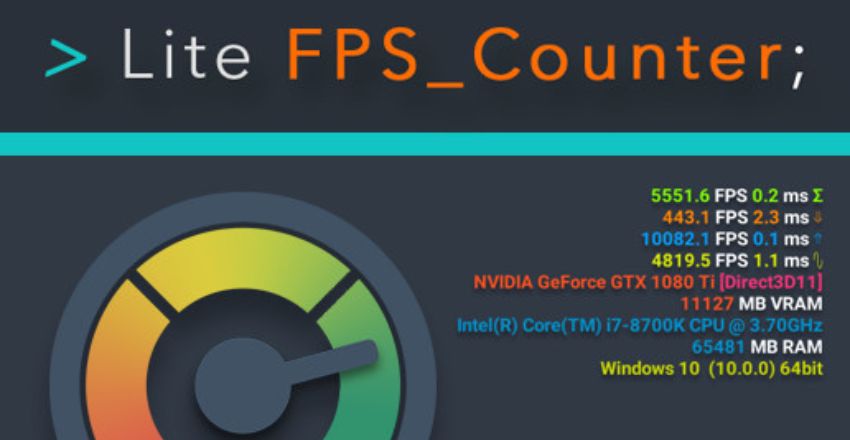
- Some include features like frame time analysis, which shows how long each frame takes to render.
- This information helps identify stuttering or inconsistent performance.
- Other tools may also monitor CPU and GPU usage, allowing you to see how your hardware performs under different loads.
- This data can be invaluable for optimizing settings and understanding hardware bottlenecks.
FPS Counters and Hardware Upgrade Decisions
An FPS counter can also help gamers determine when it may be time to upgrade their hardware. By monitoring frame rates across different games and settings, users can identify whether their graphics card, processor, or memory is limiting performance. If a system consistently struggles to maintain stable frame rates despite lowering graphical settings, it may indicate that certain components are no longer capable of meeting the demands of modern games. Using FPS data as a benchmark allows gamers to make informed upgrade decisions, ensuring that investments in new hardware provide noticeable improvements in gameplay quality, responsiveness, and overall system performance.
FPS Counter and Game Optimization
Using an fps counter can also aid in fine-tuning game settings for performance. For example, you can find a balance between visual quality and smooth gameplay by adjusting graphic settings while observing the fps. This process is particularly helpful in graphically demanding games, where small tweaks can significantly improve performance. It also helps you understand how certain features, like shadows or reflections, impact your overall experience.
Conclusion
The fps counter is an essential tool for any serious gamer. Understanding how it works and how to use it effectively can lead to a smoother, more enjoyable gaming experience. By monitoring your fps, you can identify performance issues and make necessary adjustments to optimize your gameplay. Whether you’re a casual player or a competitive gamer, keeping an eye on your fps can help you stay at the top of your game. With the right tools and knowledge, you can enhance your gaming experience and enjoy every moment of your adventures in the virtual world.
If you want to read an interesting article about it, explore our “Gaming” category.
FAQs
An FPS counter measures how many frames per second are displayed in a game.
Higher fps lead to smoother gameplay, improving overall performance and experience.
Many games have built-in options in settings; third-party apps can also be used.
For most games, 30 FPS is considered playable, while 60 FPS or higher offers smoother visuals and better responsiveness.
FPS affects how smooth and responsive gameplay feels. Higher frame rates generally provide a more fluid and enjoyable gaming experience.